Email obfuscation: Which methods actually stop spam bots

Email obfuscation is a way of disguising the email address on your website so spam bots can’t copy it, while visitors can still read and use it. And yes, it still works. In a Spencer Mortensen’s study that tracks spam sent to test addresses on web pages, even a simple code disguise blocked 95% of spam bots, and visitors saw a normal address. The most reliable fix is a contact form, and on SiteGround it can also grow your email list.
Key takeaways:
- Spam bots copy email addresses from your page’s code, so an unprotected address is easy to harvest.
- A contact form leaves bots nothing to copy, and on WordPress it connects to SiteGround Email Marketing through 3 popular form plugins.
- [at] and [dot] blocked 97% of spam bots in Spencer Mortensen’s honeypot study, but visitors have to retype the address.
- If you need a visible address, CSS and JavaScript methods blocked 100% of spam bots in a 2026 honeypot study.
- Forms attract their own spam, so add a honeypot field or CAPTCHA, double opt-in, and mailbox filtering.
Why spam bots find the email address on your website
Spam bots don’t see your website the way visitors do. They read the code behind the page and copy anything that looks like an email address. These bots are called harvesters.
They usually find addresses in footers, Contact pages, and author bios. A “Contact us” link counts too, because the address sits in the link’s code. If your address is in plain text, any harvester that visits the page can copy it.
Email obfuscation means disguising your email address so spam bots can’t easily read it, while people still can. (In email security, the same term describes attackers disguising phishing content to get past filters, but this guide is about protecting your own address.) You’ve probably seen the simplest version already:
hello [at] yourbusiness [dot] com
A person can tell it’s an email address, but a bot looking for the @ sign skips right past it. The catch is that visitors have to retype the address and fix the symbols themselves. Other methods hide the disguise in the page’s code instead, so visitors see a normal address they can click.
Is it still worth doing? Yes. Addresses that appear only on web pages still attract spam, because bots copy them straight from the page. Obfuscation won’t empty an inbox that’s already flooded, since spammers also buy lists from data breaches. It does stop your website from handing your address to new spammers, which makes it one of the simplest website security habits you can add.
Email obfuscation methods compared
A contact form is the only option that leaves bots nothing to copy, and it’s the one SiteGround supports directly. If you need a visible address, other methods disguise it. Some take a minute and no technical skills. Others involve editing your site’s code, so they’re better left to a developer.
The table compares each method by effort, protection, and what it costs real visitors.
| Method | Setup effort | Blocks spam bots | Works for blind and low-vision visitors | Visitors can click to open an email |
| Contact form | No code | Nothing on the page to copy | Yes, if form fields are labeled | No need, they write in the form |
| [at] and [dot] | No code | 97% | Partly, the address is read out in pieces | No |
| Image of the address | No code | 100% | No | No |
| WordPress obfuscation plugin | Install and activate | Depends on the method it uses | Usually | Yes |
| HTML entities | Code | 95% (text), 99% (links) | Yes | Yes |
| CSS display: none | Code | 100% (text) | Yes | No, text only |
| JavaScript conversion | Code | 100% | Yes, if JavaScript is on | Yes |
Block rates come from Spencer Mortensen’s ongoing honeypot study, updated August 2026, which publishes test addresses on web pages and tracks which ones receive spam. Blind and low-vision visitors often use screen readers, which read the page aloud. Clicking to open an email means the address opens a new message in the visitor’s email app.
The drawbacks of obfuscating show up with the weaker tricks. An image forces visitors to retype your address, and screen readers can’t read it at all. [at] and [dot] make everyone fix the symbols before they can hit send.
Visual-only hiding, like tiny fonts or off-screen text, breaks screen readers too. The same rule behind email accessibility applies here: if a reader can’t use your address, they can’t reach you.
No-code: a contact form
A contact form is the only method that leaves bots nothing to harvest, because your address never appears on the page. Visitors type their message, and it lands in your inbox.
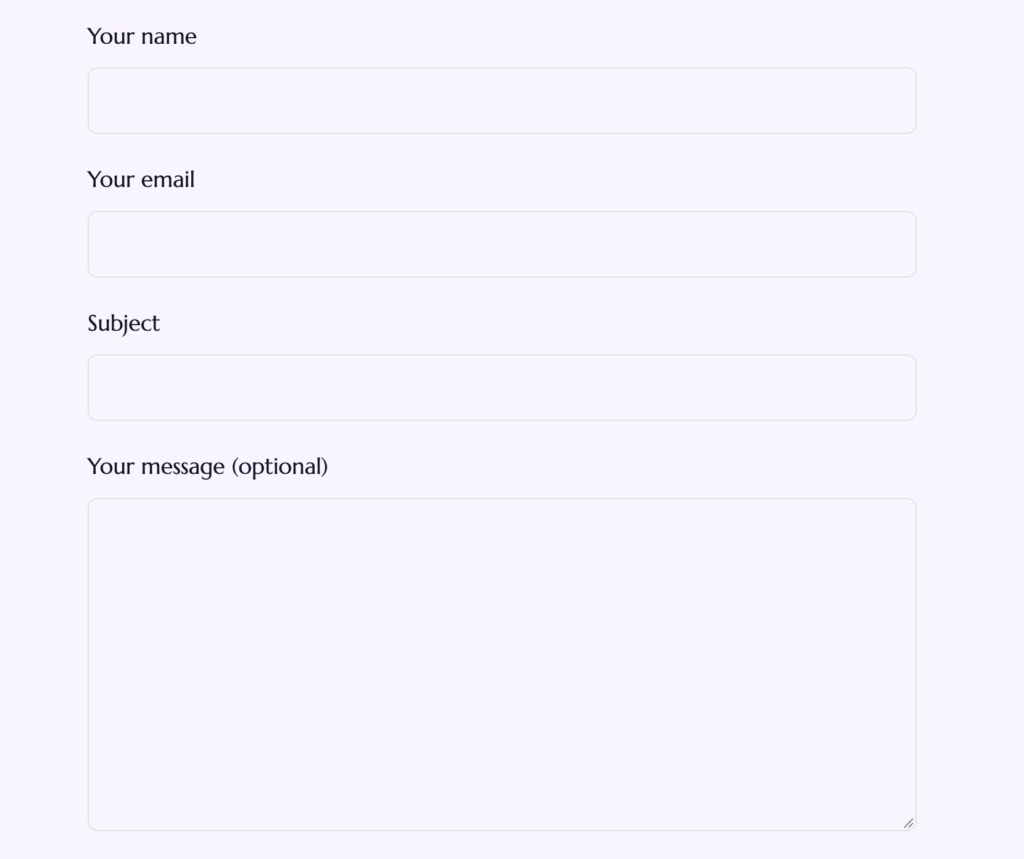
It’s also the simplest way to hide an email address on a website if you’d rather not show your address at all. You’ll find step-by-step setup for WordPress and the SiteGround Website Builder below.
No-code: [at] and [dot], or an image of the address
Writing your address as hello [at] yourbusiness [dot] com takes seconds and works on any site, including page builders that don’t allow code. It blocked 97% of spam bots in the honeypot study. The trade-off is that visitors have to retype the address and fix the symbols, and some will get it wrong.
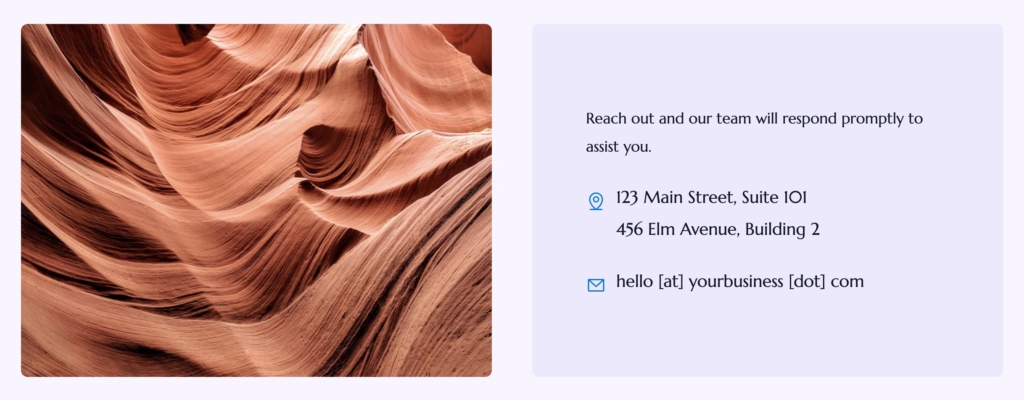
An image of your address blocked every spam bot in the same study, because there’s no text to copy. It’s also the hardest option for visitors: nobody can click or copy it, and screen readers can’t read it. If you use an image, add the address in plain words nearby, for example “hello at yourbusiness dot com,” so every visitor can still reach you.
Low-code: a WordPress obfuscation plugin
An email obfuscator plugin finds the addresses in your posts, widgets, and footer, then disguises them automatically.
Before you install one, check three things:
- Recent updates. Skip plugins that haven’t been updated in the past year.
- Active installs. A large user base means bugs get reported and fixed faster.
- Your email links. After activation, click every email link on your site to confirm it still opens a new message.
If your site already runs through Cloudflare, check its Email Address Obfuscation setting before installing a plugin, since it disguises addresses across your whole site. Visitors see your address as normal, but some tools that read the page’s code show “[email protected]” in its place.
Code methods (for your developer)
HTML entities replace each character with a code the browser displays normally. For example, @ stands for the @ sign. WordPress has this built in: the antispambot() function encodes characters at random, so the code changes on every page load.
You don’t have to write the code by hand: a free online email obfuscator turns your address into HTML entities you can paste into a custom HTML block on your page.
CSS display: none hides decoy text inside the address, so bots copy a wrong address while visitors see the right one. It must be display: none specifically, since other hiding tricks break screen readers.
JavaScript conversion stores scrambled text in the code and rebuilds the address in the visitor’s browser. Visitors with JavaScript turned off see the scrambled version.
How to pick the right method for your site
Pick the method based on how visitors should reach you and what you can set up yourself. If you don’t need a visible address, start with a form. If people need to click and email you, a plugin is the easiest fit.
| Your situation | Best method | Why |
| You’d rather not publish an address at all | Contact form | Nothing in the code for a bot to copy |
| You want every contact to also grow your email list | Contact form connected to SiteGround Email Marketing | Visitors who opt in become contacts you can email again |
| Your site builder doesn’t allow plugins or custom code | The builder’s form block | Works with no access to the page code |
| Visitors need to click your address and email you directly | WordPress obfuscation plugin | Keeps the email link working while hiding it in the code, and covers posts, widgets, and footers automatically |
| You have a developer, or edit code yourself | CSS display: none or JavaScript conversion | Among the methods that blocked every spam bot in the study |
Start with your Contact page, since it’s the page built for people trying to reach you. Then work outward to the footer, author bios, and older posts.
How to hide your email address on a SiteGround site
Replacing your written address with a contact form leaves bots nothing to copy. The steps below cover two setups: a WordPress site, where the form can also grow your list through SiteGround Email Marketing, and a site built with the SiteGround Website Builder. After that, you’ll find a few ways to keep the form itself spam-free.
On WordPress: connect your contact form to SiteGround Email Marketing
If you already use Contact Form 7, WPForms, or Ninja Forms, keep it. The SiteGround Email Marketing plugin connects your existing form to your Email Marketing account, so there’s nothing to rebuild.
Visitors still send you a message. Turn on the consent checkbox in the integration settings, and only visitors who tick it are added to the Email Marketing group you choose. Without it, every person who submits the form joins your list, so keep it on for any contact form.
- Install the SiteGround Email Marketing plugin from your WordPress dashboard, then connect it to your account on the plugin’s Settings page.
- Open your form in Contact Form 7, WPForms, or Ninja Forms, add the SiteGround Email Marketing option, and turn on the consent checkbox.
- Choose the contact group that new opt-ins should join.
- Place the form on your Contact page, and replace the footer address with a link to that page.
Want a newsletter sign-up box too? The same plugin builds subscription forms under Email Marketing > Forms for your footer or sidebar. SiteGround Email Marketing collects contacts from both forms in one list.
On SiteGround Website Builder: add a contact form section
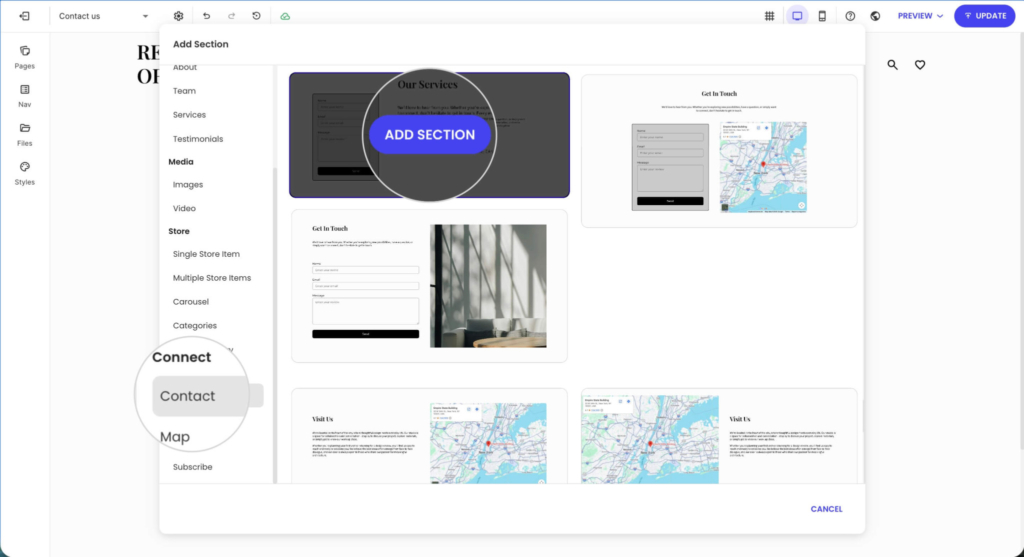
You can add a contact form in the Website Builder by opening your Contact page and then clicking Add Section. Pick a layout from the Contact category. In the form’s settings, choose the email address that should receive messages, then delete the plain-text address from the page. Visitors can reach you, and bots have nothing to copy.
The contact form doesn’t add visitors to your email list. To collect subscribers as well, add a Subscribe section and connect it to a SiteGround Email Marketing group, following the guide to collecting leads with the Website Builder. Turn on its consent checkbox, and create the group in Email Marketing first, since the builder only lists groups that already exist.
Stop the form from becoming the new spam inlet
Contact form spam is the trade-off: bots that can’t copy your address will fill in your form instead. Four controls keep it in check:
- Honeypot field. A hidden field that people never see but bots fill in. Submissions with that field filled in get discarded.
- CAPTCHA. Turn on reCAPTCHA or hCaptcha in your form plugin’s settings to challenge suspicious submissions.
- Double opt-in. It keeps bot sign-ups off your list by asking new contacts to confirm by email first. In SiteGround Email Marketing, you turn it on per group: go to Client Area > Services > Email Marketing, open the group’s Actions menu, and select Double opt-in.
- Mailbox filtering. Spam filtering catches whatever still slips through. SiteGround’s in-house Spam Protection is on by default for all clients, and it learns from you: every message you move into or out of Junk helps it sort the next one.
Hide your address, keep the door open
Email obfuscation keeps your address readable for people and unreadable for bots, and even simple methods stop most of them. Pick the method that fits your setup without making visitors work harder to reach you.
If you’d rather skip the address altogether, a contact form does the same job, and it can do more than stop spam. Connect it to SiteGround Email Marketing, and the people who reach out can become an audience you email again.
Improve Your Email Campaigns with SiteGround!
Want your emails to reach more people? Try SiteGround Email Marketing. With an average delivery rate of 98.8%, your emails will land in your subscribers' inboxes. 
Frequently asked questions about email obfuscation
Email obfuscation on a hosted site builder often works only partly, because editing the page code isn’t always possible or easy. Some builders block it entirely, and others use their own template languages that take time to learn. If your builder offers a custom HTML block, an address encoded as HTML entities works without a plugin. If it doesn’t, use the builder’s form block instead of a written address.
Form, plugin, and CSS methods leave crawlable content untouched. If a developer uses a redirect-based email link, ask them to add rel=”nofollow” so crawlers don’t flag it as broken.
No. Obfuscation only works on web pages, because it relies on the browser to rebuild the address. A PDF or email signature stores the address as plain text that any harvester can read. For those, publish a role address such as hello@ that you can retire if it gets flooded.
Obfuscation stops new harvesting, but it can’t pull your address back from lists spammers have already traded. If the address is already flooded, create a new one and publish it with obfuscation. Forward the old one for a few weeks while you update your contacts, then let it lapse.
Harvesting email addresses isn’t illegal on its own in the US. However, the CAN-SPAM Act treats sending commercial email to harvested addresses as an aggravated violation, which can raise the penalties. Rules differ by country, and this isn’t legal advice.






Comments ( 0 )
Thanks! Your comment will be held for moderation and will be shortly published, if it is related to this blog article. Comments for support inquiries or issues will not be published, if you have such please report it through our official channels of communication.
Leave a comment
Thanks! Your comment will be held for moderation and will be shortly published, if it is related to this blog article. Comments for support inquiries or issues will not be published, if you have such please report it through our official channels of communication.