How to change an AI-built app database without losing data
-
- Why a database change can affect your existing records
- Which changes keep your records, and which remove values
- How to change an AI-built app database without losing data, step by step
- Your safety net: versions for code, the dashboard for records
- When to bring in a developer
- Keeping code, schema and records in step
- FAQs
Once an app you’ve vibe coded with an AI app builder has people using it every day, many of the features you’ll want next need it to store something new, like a phone number for each customer or a delivery date on each order. That information goes into a database that already holds your customers and their orders, so before you add it, you need to know how to make the change while keeping every one of those records as it was.
To change an AI-built app database without losing data is to update the app’s code and the database’s structure so they work together, while every existing record keeps its values, its ID (the unique code the database gives it), and its links to other records.
Key takeaways:
- To change an AI-built app database without losing data, it helps to know that your app keeps its code, its database structure and its saved records in separate places, and that one request can change the code and the structure together.
- Adding an optional field leaves existing records as they are, while removing a field takes its stored values with it, so handle removals as separate, final steps.
- Follow four steps: note your baseline records, ask for new fields with a plan first, check the results against your notes, and remove old fields only when you need to.
- Restoring a previous project version rolls back your source files without losing any new signups or orders saved since that version.
Why a database change can affect your existing records
Any application that remembers information between user visits relies on a database to store its data. When you ask an AI app builder to create or update a feature (such as adding a phone number field to a sign-up form), it changes how your app handles information from then on. Because all the data you collected earlier still exists under the old structure, when you update the database schema in an AI-built app, your existing records have to stay compatible with your app’s new features and code.
Good to know: Databases are structured like digital filing cabinets with specific rules for every collection and field. When you add a new feature, you’re expanding the blueprint of your application. This is not unique to AI tools: it’s a reality of software development, whether an app is hand-coded by human engineers, built with traditional tools, or generated by an AI builder. Historical records were created under your app’s original structure, so they naturally lack values for fields added later. Managing how older records interact with newer features is a completely standard, routine part of building and growing any software application.
What lives where: your app’s code, structure and records
To understand why database updates need care, it helps to look at how AI app builders organize your project behind the scenes. When you create or modify a feature through chat prompts, the builder works with three components that live in different places:
- The code: Your app’s step-by-step instructions. In most AI app builders, these files reside on your project’s server under a main source folder called src/. They use file extensions like .jsx or .js to indicate web code and carry descriptive names based on their purpose: layout files in a components/ folder like src/components/SignupForm.jsx control the visual form elements on screen, while backend files in a lib/ folder like src/lib/customers.js handle processing user input and sending it to the database. In advanced AI app builders, you can usually view and explore these files directly inside your interface. For instance, Coderick AI displays your full project directory in its Code tab.
- The schema (structure): The database’s structural blueprint. It organizes information into collections (groups of similar items, such as customers or orders) and fields (the specific details every item can hold, such as a name, email address, or phone number). AI app builders set up this storage automatically and usually provide a visual backend dashboard to view it. For example, Coderick AI connects to an open-source database called PocketBase that you can inspect and manage directly from its Database tab.
- The records: Your actual saved data. Every registered user is an individual record inside the customers collection with unique field values, just as every purchase is a separate record inside the orders collection. Records can also link to each other through unique IDs, such as an order storing a customer’s ID so your app can look up and display their past purchases on an account page.
Under normal conditions, these three layers change separately: editing a file changes the code, adding a field updates the schema, and a user updating their profile changes a single record. A prompt like “collect phone numbers on sign-up,” however, changes your code and your schema at the same time, and every record created under the old schema has to keep working with both the updated code and the expanded database structure.
That is why updating an AI-built app’s database is much more than a routine code edit. It requires a database migration, which is a planned transition of your database from one schema version to the next. Modern AI app builders give you clear visibility into all three layers so you can manage these transitions smoothly as your application grows.
Which changes keep your records, and which remove values
Whether you can change database fields without losing records depends on the kind of change. Most AI app database schema changes fall into one of these six types:
| Change | What happens to existing records | Why | What to do |
| Add an optional field | Records stay as they are, with the new field left empty. | Nothing already stored in your database is touched. | Go ahead, then check that the app handles an empty value. |
| Add a required field | Records keep their values, but an old record can’t be saved again until the new field has a value. | The database checks required fields every time a record is saved, including edits to old records. | Make the field optional in the database and required only on the form (Step 2). |
| Rename a field | Records keep their values when the field itself is renamed. | A rename changes the field’s label, not what’s stored in it. Removing a field and adding a new one under a different name starts empty. | Ask for a rename, then check that the values carried over. |
| Remove a field | The values stored in that field are removed with it. | A field and its stored values go together. | Copy anything you still need first, and remove it as its own change (Step 4). |
| Change a field’s data type (e.g., text to number, or one field to two) | Existing values may not fit the new type. | A field’s data type (the kind of value it can hold) is set when it’s created, so a new format usually needs a new field. | Add a new field, copy the values across, check them, then remove the old one, or bring in a developer. |
| Restructure a collection or its links | Records may stop pointing to the right related items. | Records connect to each other through unique IDs, so every ID has to carry over when links move. | Bring in a developer. |
How to change an AI-built app database without losing data, step by step
Whenever you update the database structure in an AI-built app, the safest way to preserve existing data during schema changes is to add before you remove: introduce your new fields alongside the existing ones, check that everything works as expected, and remove outdated structures only as a separate, final step.
Here is how to handle the first crucial step using a practical example: adding a phone number field to a customer profile in an app that already has 311 customers.
Step 1. Before you prompt: write down what you have and which files use it
Before writing a single prompt or editing any code, confirm a supported database backup or recovery method, then take a snapshot of your app’s current state. The AI builder will show you that the new phone number field works, but only your baseline notes can show that your existing customer records and past orders stayed as they were.
Document your baseline data
Start inside your database dashboard. Note down the total record count for your main collections, then pick three specific sample records to track throughout the update:
- Your own test account, which you created when you first tested the app.
- A recent customer, meaning an account created within the last week.
- An active customer, meaning the account with the most orders or activity.
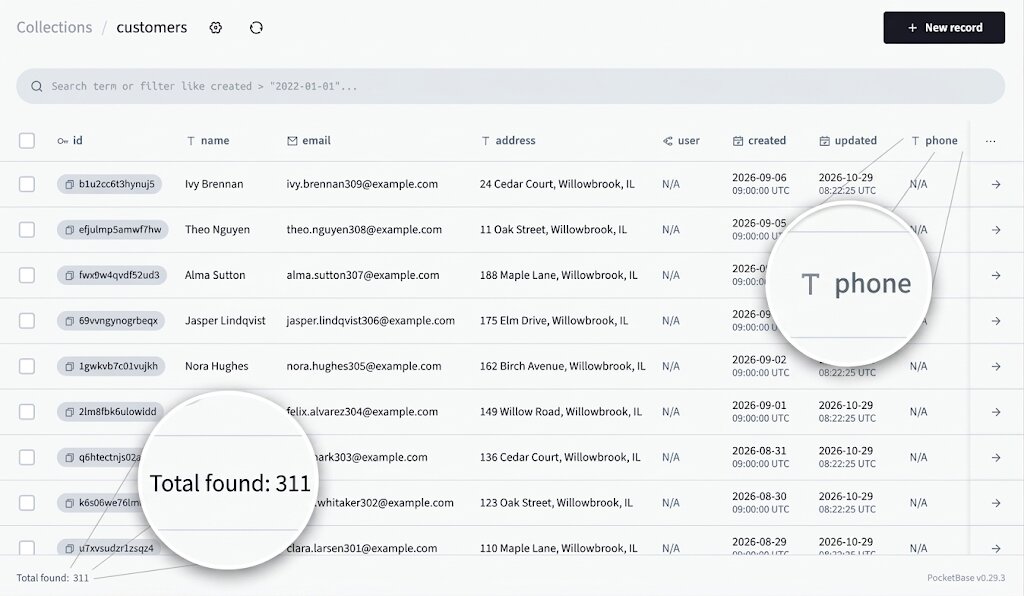
For each sample, write down its record ID and its number of related items, such as orders. For example, in Coderick AI, opening the PocketBase Dashboard from the Database tab shows each collection’s total record count and every record’s ID; in our example, the customers collection held 311 records.
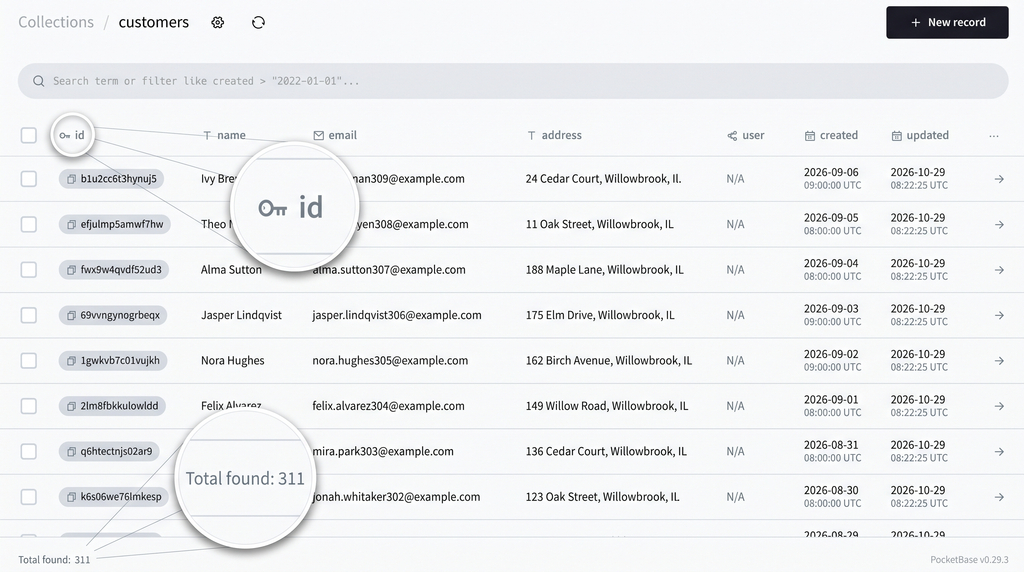
Pro tip: Your three sample IDs are your quickest check later. The record count tells you whether any records went missing, while the IDs tell you whether the same customers are still there with their orders attached. Keep them next to the count in your notes.
Map the files that handle your data
Next, identify which project files work with this data. Searching your project’s code for the collection name (e.g., customers) shows every file that reads or saves that information. In Coderick AI, for instance, you can inspect Coderick source code by searching both file names and the code inside them.
In our example, a search for customers returns three files. If you’re new to code, learning to trace data-related code helps you confirm they’re the ones the change will touch:
- src/components/SignupForm.tsx draws the sign-up form on screen, where the new phone number input will appear.
- src/pages/Account.tsx shows the account page, where existing customers view and edit their details.
- src/lib/customers.ts saves customer details to the database and reads them back when someone logs in.
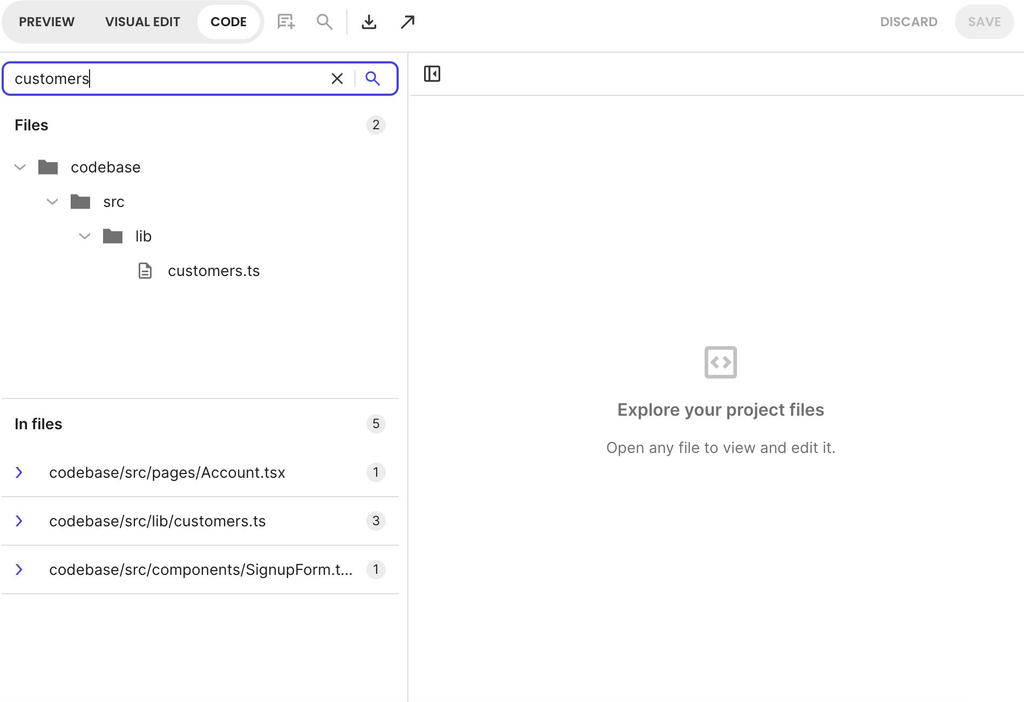
Save these baseline notes in a text file before prompting the AI. You’ll compare the app against these numbers and files in later steps.
Step 2. When you prompt: ask for an addition and see the plan first
AI app builders generate code directly from your instructions. However, a prompt like “add a phone number field” leaves several technical decisions open: which database collection gets the field, whether existing records must have it, and which files need to be edited. Asking the AI to outline its plan before it changes anything turns those behind-the-scenes choices into a clear plan you review and approve first.
Why the field is optional in the database and required on the form
One choice decides how the change feels for your existing users: make the new field optional in the database, but required on your forms.
Databases such as PocketBase in Coderick AI check schema rules every time a record is saved. If you make phone a required field in the database, any existing customer who tries to edit their account or update an address later will get an error, because their record has no phone number.
By keeping the database field optional and setting the requirement only on the sign-up form and account page, you get both:
- New users are prompted to provide a phone number when registering.
- Existing users can log in and use the app as before, and they add a phone number the next time they edit their account.
Here’s a prompt template you can adapt whenever you add a field to a collection:
Add [the new detail] to the [collection] collection. First list the database changes and every file you’ll edit, and wait for my confirmation. Keep all existing fields and records, and add a new field rather than renaming or removing anything. Make it optional in the database and required only in [forms or pages]. Afterward, tell me how many records that collection has.
Filled in for our phone number example:
Add a phone number to the customers collection. First, list the database changes and every file you’ll edit, and wait for my confirmation. Keep all existing fields and records, and add a new field rather than renaming or removing anything. Make it optional in the database and required only in SignupForm.tsx and on the account page (Account.tsx). Afterward, tell me how many records that collection has.
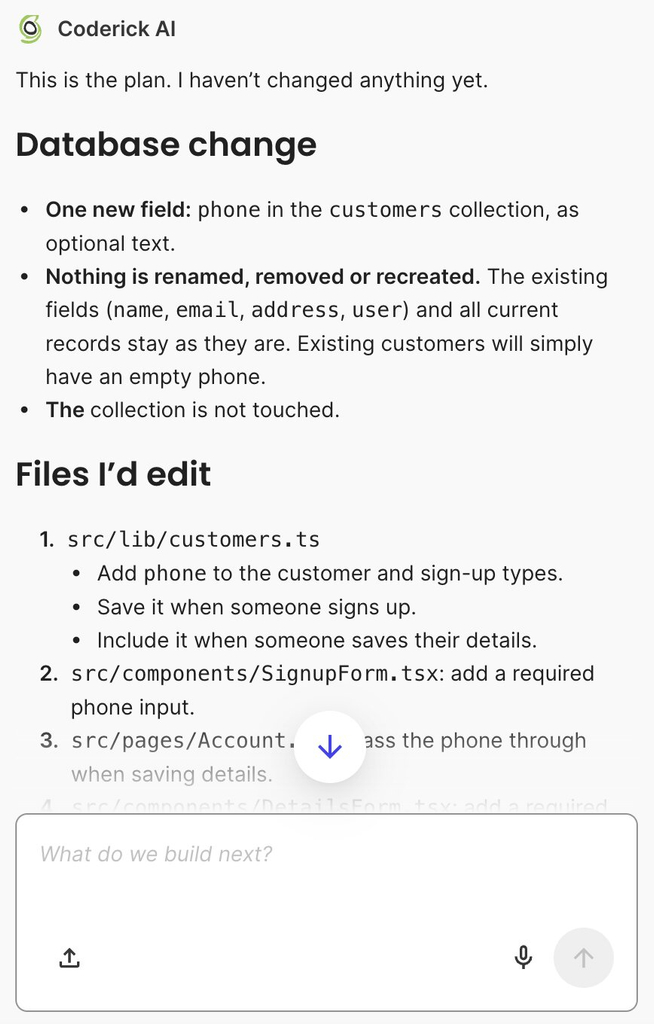
Treat the AI’s response as your approval step, and review the AI’s planned changes before you reply “looks good, go ahead.” Check that the plan meets three criteria:
- The database change adds one new field (phone) to the target collection (customers) without renaming or deleting any existing fields.
- The files listed match the baseline list from Step 1 (SignupForm.tsx, Account.tsx and customers.ts), or the AI explains why it adds or skips a file. In the test, the plan also listed src/components/DetailsForm.tsx, the form where customers edit their details, which the search didn’t return because it doesn’t contain the word customers. A file like this is fine to approve once you know what it does.
- The plan states that phone will be created as an optional field in the database, with the requirement applied only on the forms.
If the AI’s plan proposes renaming, removing or restructuring any fields, reply asking it to make an addition only and send an updated plan. Once the plan matches your requirements, give the go-ahead. When the AI finishes, check that the record count in its report-back matches your notes.
Step 3. After the change: check the result against your notes
Seeing the new phone number field on your sign-up form shows that the AI builder made the addition, and your baseline notes show whether everything else stayed as it was. Two checks, one in your database dashboard and one in the app, cover both.
Verify inside your database dashboard
Open your database interface (such as the PocketBase Dashboard in Coderick AI) and navigate to the customers collection:
- Check that the new phone field is listed alongside all the original fields (like name and email), with none missing or renamed.
- Compare the collection’s record count with your baseline notes. In our example, the customers collection showed 311 records before and after, with the phone field empty for every existing customer.
- Look up your three sample customer records and confirm that each one keeps its original ID and its linked orders.
Test in your live app as a returning user
Next, open your app’s preview and log in with your own test account (Sample 1) to use the app as a returning customer:
- Go to the account page, edit a detail such as your name, and save your changes.
- Place a test order, then check your account history page, where the new order should appear alongside your earlier ones. If the preview shares your live database, delete the test order afterward.
- For Samples 2 and 3, a dashboard check is enough: their record IDs and linked order counts should match your baseline notes.
In practice: An existing customer with no phone number. Your test account was created before the change, so its phone field is empty. Because phone is now required on the account form, saving the account page asks you for a phone number first. Once you add one, the record saves with its original ID and orders, and in the dashboard it’s now the only existing customer with a phone number until others edit their accounts.
If any check fails, such as a lower record count, a sample record with a different ID, or an old account that can’t be saved, pause; restoring a code version won’t restore missing database records. Check the dashboard against your notes before you try another prompt.
Step 4. Later, as its own change: remove old fields only when you need to
Adding a new field, as in the phone number example, leaves existing data as it is and doesn’t require deleting anything. Step 4 applies only when you retire a field that’s no longer in use, such as a temporary promo code field from a past marketing campaign, or an old field whose values you’ve already copied to a new one.
Because removing a field removes its stored values from every record in the collection, make each removal a separate change of its own.
Before asking your AI builder to remove a field, run through these checks:
- Search your project files for the exact field name. If any component, page or other file still references the field, update or remove those references first, since the field isn’t ready to remove until no code uses it.
- Decide whether you or your business might need those values later. If you do, copy the collection’s records somewhere safe beforehand.
- Remove one field at a time. Removing several fields or restructuring several collections in one prompt makes it hard to tell which change caused a shifted record count or an error.
Once you approve the plan and the AI completes the change, re-run your Step 3 verification checks:
- Open your database dashboard to confirm the target field is gone while all remaining fields stay intact.
- Check that your sample customer records keep the same IDs and linked order counts as in your baseline notes.
Your safety net: versions for code, the dashboard for records
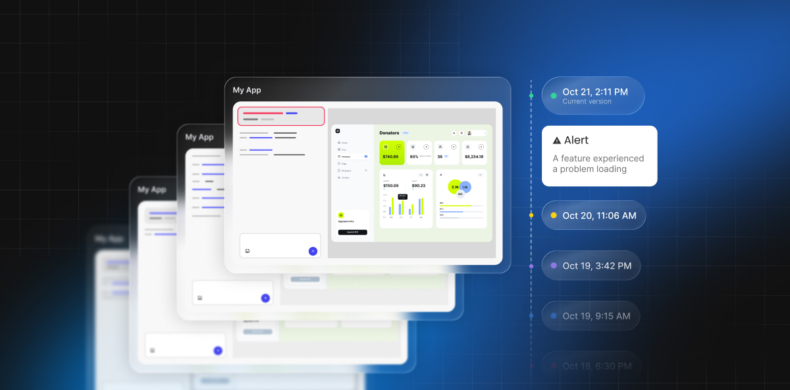
Keeping versions of your project lets you roll back its code to an earlier state when you need to. In Coderick AI, for example, every prompt creates a new version in the chat, and clicking Restore on an earlier version reverts your project’s files to that point while your database stays as it is. Your published site also keeps running its current version until you publish again.
Why code and database records are kept separate
Keeping application code and stored data apart is a standard design principle in software. If rolling back a code version also restored the database, undoing a layout tweak would remove every customer signup and purchase made since that version.
Because the database remains independent:
- When you restore yesterday’s code version, the new user accounts, orders and form submissions collected today stay in your database, so reverting code doesn’t touch live sales or customer records.
- If you restore a version created before you added the phone field, the phone field stays in your database with every value collected so far, and the older sign-up form stops asking for phone numbers. Because you added before removing, nothing the older code expects has gone, so it keeps working with the expanded database.
Good to know: Data errors, such as a typo in a customer’s email or an old address, are best corrected where the data lives. In your database dashboard (such as the PocketBase Dashboard in Coderick AI), you can open any record to edit its field values, add new records or delete individual records, without going through a code restore.
When to bring in a developer
Many routine database changes, such as adding optional fields or creating new collections, can be planned, tested and checked on your own. Some structural changes alter existing data at scale or touch sensitive systems, and those are best handled by an experienced developer.
You should consider working with a developer in the following situations:
- You need to convert existing values, such as turning prices stored as text into numbers, or splitting a full_name field into separate first_name and last_name fields.
- You need to restructure how collections link together, such as changing orders that hold one item into orders that can hold several products.
- The change touches sign-in details, user permissions or payments, where a mistake can stop people from logging in or affect billing.
- The database syncs with an outside system, such as a CRM or accounting software, or holds more records than sample checks can cover.
- Your Step 3 checks show a record count mismatch or missing data that you can’t explain after reviewing your version history and database dashboard.
How to hand over your project efficiently
When passing a complex update to a developer, give them a head start by providing:
- Your Step 1 baseline notes (your database record counts and sample IDs).
- The Step 2 prompt plan generated by your AI builder.
- A clear description of the new feature or structural change you want to achieve.
Your baseline notes give the developer a “before” picture of your data, which saves them time when they look into a problem. Agree up front on which structural changes the developer will handle and which routine changes you’ll keep making yourself, through the chat or by editing the code by hand, so you both know who changes what.
Keeping code, schema and records in step
To change an AI-built app database without losing data, you keep three things in step: your app’s code, its database schema, and the records your customers have already created.
When you note your baseline before you prompt, add new fields before removing old ones, and check the result against your notes, each change leaves your existing records as they were. Project versions cover your files and the database dashboard covers your records, so you can check and correct both sides as your AI-built app grows.
Vibe code your vision
Build production-ready sites and web apps through a simple chat, hosted on enterprise-grade infrastructure from day one. 
FAQs
To change an AI-built app database without losing data, note your record counts and a few sample records, confirm a supported database backup or recovery method, then ask the AI for an addition and approve its plan before it starts, and compare the result with your notes in the database and in the app. Remove an old field only afterward, as a separate change, once you no longer need its values.
Changing your AI app’s database schema keeps existing records when you add or rename a field. Removing a field takes the values stored in it with it, so copy anything you still need before you remove one.
The difference between an AI app’s code, database schema and stored records is what each holds. The code is the app’s instructions, the schema is the database’s structure of collections and fields, and the records are your data, such as each customer and order. A change can touch any of them, and they need to keep working together.
To add or rename a field without breaking old records, add the field as optional in the database and required only on the form, or rename the existing field rather than replacing it with a new one. Then open an old record in the app, save it, and check it still works.
Restoring an earlier version of your AI-built app brings back its code, and in Coderick AI the database stays as it is, so records added since that version stay in place. After restoring, check that the code still uses the fields your database has.
To check that old and new records still work after a database change, compare your record counts and three sample records with notes you took before the change. Then log in with an old account, edit and save it, and create a new record, such as an order.





Comments ( 0 )
Thanks! Your comment will be held for moderation and will be shortly published, if it is related to this blog article. Comments for support inquiries or issues will not be published, if you have such please report it through our official channels of communication.
Leave a comment
Thanks! Your comment will be held for moderation and will be shortly published, if it is related to this blog article. Comments for support inquiries or issues will not be published, if you have such please report it through our official channels of communication.